A rchive Date
[ 02-02-2001 ]
Category
[ Information Technologies ]
sub-Categoy
[ Microsoft ]
|
[http://www.techrepublic.com/article.jhtml?id=r00320010122det01.htm
Windows 2000's Offline Files: Working without network connection
Jan 22, 2001
Brian Kennemer
Author's Bio
Windows 2000 take the Briefcase idea, made it much better, and then built it into the OS. Offline Files provides mobile users with access to necessary files from the server even while they are off the network, and it can help desktop users keep working in the event of a network crash. If you support Windows 2000, you will want to understand and know how to use Offline Files. Here's a look at Win2K's very useful Offline Files feature.
Access files when away from the network
Offline Files enables you to mark certain files, folders, network drives, and even Web pages (if you use IE5) so that they are available while you are off the network. Marking one of these items places a copy of it onto your local hard drive. You access the item just as you would if you were connected to the network. For example, you mark a folder on your network F: drive to be available offline. When you disconnect from the network, this folder is still accessible via your F: drive, but now it is the only folder you see in that drive. The Offline Files functionality remembers which drive contained the marked files or folders and maps the drive for you even though you are not really connected to the drive.
When a synchronization takes place between the server and your offline copies, Windows 2000 checks to see if any changes have been made and synchronizes these changes in the appropriate direction. If there has been a change on both the server and the offline files, Windows 2000 will ask you which changes should be kept.
Great for mobile and desktop users
Offline Files is obviously great for mobile users with laptops, but desktop users will find it useful as well. For example, say you have files kept on your network that you need in order to do your job. If your network crashes, you could find yourself with nothing to do. If you use Offline Files to mark these files for offline use, you can continue to work during an outage. When your network comes back up, you simply synchronize your changes back up to the network.
Enabling Offline Files
The basics of Offline Files are pretty simple and straightforward. First, make sure the feature is enabled. Open Windows Explorer and select Tools | Folder Options, which will bring up the Folder Options dialog box. Select the tab Offline Files. This tab controls the basic behavior of the Offline Files feature. Make sure that the check box Enable Offline Files is selected (see Figure 1).
Figure 1
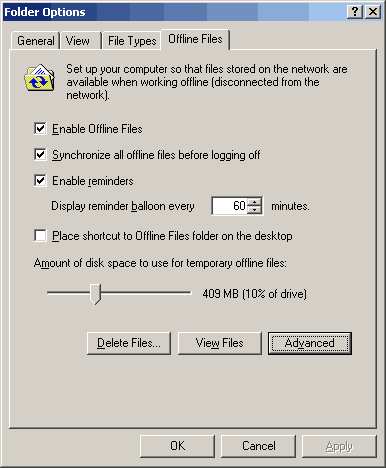
Offline Files is enabled.
Selecting files for offline access
With Offline Files enabled, you can now mark some files and look at the feature's other options. Navigate out to a network share and find a file or folder you want to make available offline. Right-click on the file. In the context menu, you will see the option Make Available Offline (see Figure 2).
Figure 2
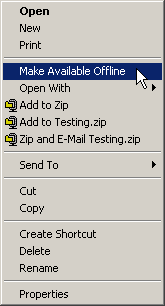
Selecting this option enables a given file to be accessed offline.
Once you make a file or folder available offline, a small graphic is added to its icon. This graphic lets you know at a glance which items are marked for offline use. Figure 3 shows a Microsoft Word document that has been marked for offline use.
Figure 3

The small double arrows denote an offline accessible file.
http://www.techrepublic.com/article.jhtml;$sessionid$N1ACMAQAAAB5OCTEAAKCFEY?id=r00320010122det01.htm&page=2
Customizing synchronization
Now let's look at the other Offline Files settings and options. From Windows Explorer, select Tools | Synchronize. The Items To Synchronize dialog box listing all the folders, files, and Web pages that you have selected to view offline will appear. Click the Setup button to view the Synchronization Settings dialog box (see Figure 4). This dialog box lets you control when synchronization between the server and your offline copies takes place.
Figure 4
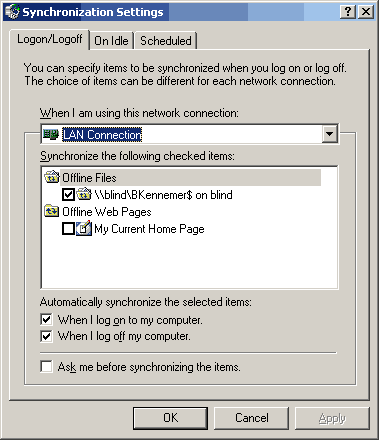
Control when your offline files synchronize.
You can also specify different synch settings for each of your network connections using Offline Files. This enables you to specify synchronization options for both LAN and dial-up connections. This capability is useful if you do not want to wait for a full synch while you are connected via a slower dial-up connection.
There are three different types of settings for synchronization of your offline files: Logon/Logoff, On Idle, and Scheduled. Each synch setting can be accessed from tabs found in the Synchronization Settings dialog box. On the Logon/Logoff tab, you specify for each of your connections whether you want a synch to occur when you log in or out of the network. Check the box next to the items you want synchronized during logon and logoff. Then check the boxes in the area called Automatically Synchronize The Selected Items. You can have items synchronize during login, logoff, or both.
The On Idle tab enables you to indicate which items should be synchronized when your computer has been idle for a specified amount of time. Selecting the Advanced button on this tab gives you access to the settings for how long your machine must be idle before a synch is started. On Idle synchronization is good when you have lots to synch and do not want to slow down your machine while you are working.
The Scheduled tab provides access to creating different synchronization schedules. A very easy-to-follow wizard helps you create these schedules. Creating a scheduled synch ensures that an offline copy is updated regularly and kept current.
Web pages can also be used offline
You can also make Web pages available offline in a way very similar to making files or folders offline. First, add a Web page to your Favorites list and then right-click on the page and select Make Available Offline. This brings up a brief wizard that allows you to specify how many levels of links should be taken offline (see Figure 5). You can select up to three levels of depth, bringing not only the Web page you selected offline but also the Web pages it links to as well. Simply specify how many links deep you wish to go and click Next.
Figure 5
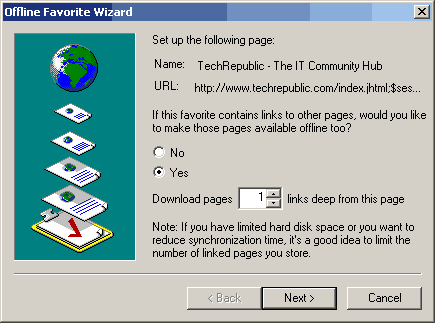
You can make a favorite Web page as well as the links on that page available offline. You also specify when to synchronize this Web page (see Figure 6). You can choose to only synch it when you choose Synchronize from the Tools menu or you can create a schedule. Make your selection and click Next to continue.
Figure 6
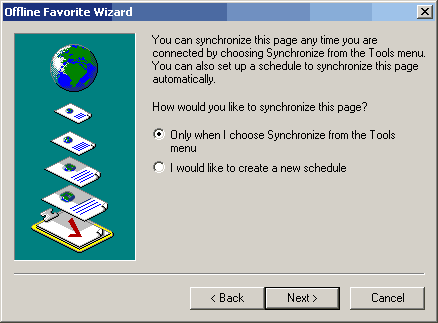
Control when an offline Web page synchronizes.
The next screen of the wizard allows you to specify, if required, a username and password for the Web site (see Figure 7). Clicking Finish will complete the wizard and start the synchronization.
Figure 7
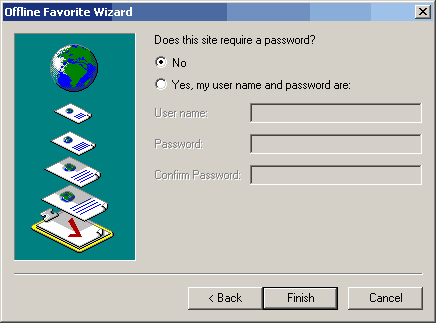
No password is necessary in this instance.
When you have finished synchronization, you will be able to view the page even when not connected to the Internet. Be aware that some Web sites do not allow synchronization with their sites. If this is the case, you may not be able to view a page when offline.]
|